Real markdown, in the browser
A fast editor, your folder tree, and files you can take with you.
“My notes are in a format my tools can't read, and export is lossy.”
You did the right thing and wrote everything down. Then the export button gave you HTML with inline styles, or JSON, or markdown with half the structure flattened out — and the notes you spent two years on only really work inside the app that made them.
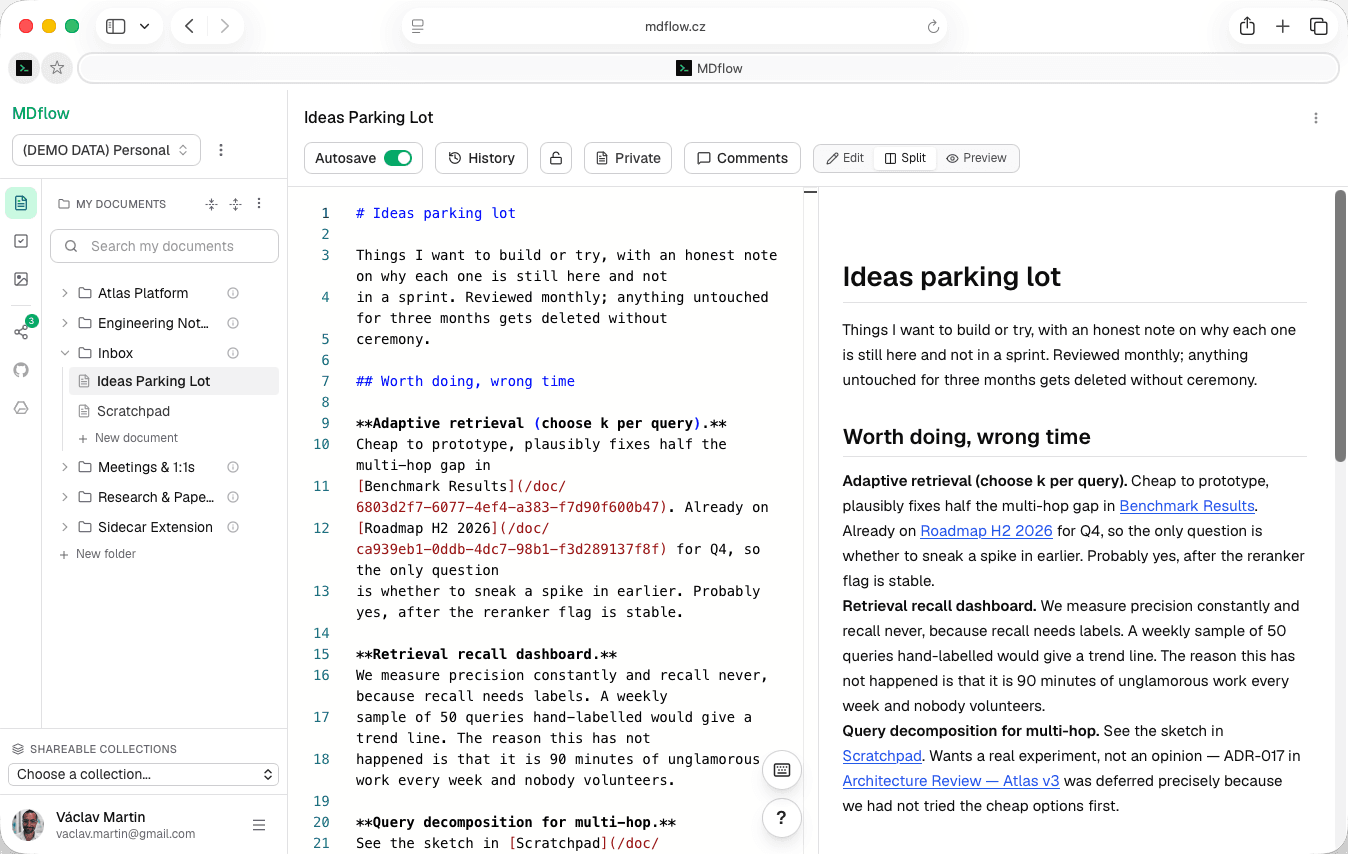
MDflow starts from the other end. The document is a markdown file. Everything on this page — the editor, the tree, search, tasks, sharing — is built on top of that file rather than around a database row that can be exported to markdown if you ask nicely.
An editor that gets out of the way
Monaco — the editor core from VS Code — with markdown highlighting and a live preview. No vault to configure, no plugins to wire up before you can type.
- Three views. Edit for focused writing, Split for source and rendered preview side by side, and Preview for a clean read. The preview updates as you type, and in Split view it follows the editor as you scroll — nudge it on its own whenever you like, and the next editor scroll takes the lead again.
- Monaco underneath. The same editor core as VS Code, with markdown syntax highlighting, find-and-replace, and light or dark themes picked up from your system preference. No desktop app to install.
- GitHub Flavored Markdown. Headings, emphasis, links, lists, task lists, blockquotes, code blocks, tables, strikethrough, dividers and images — rendered the way GitHub renders them.
- Save on your terms. A Save button and
Cmd+S/Ctrl+S, a visible unsaved-changes indicator, a Discard action that restores the last saved version, and a browser warning before you leave with unsaved work. - Counted while you write. A status line under the editor keeps a live word count, character count and estimated reading time. Markdown markers like
#,-and>are not counted as words, and the line disappears in focus mode.
Small things that add up while writing
The parts you touch a hundred times a day: linking to another note, dropping in an image, getting the chrome out of the way.
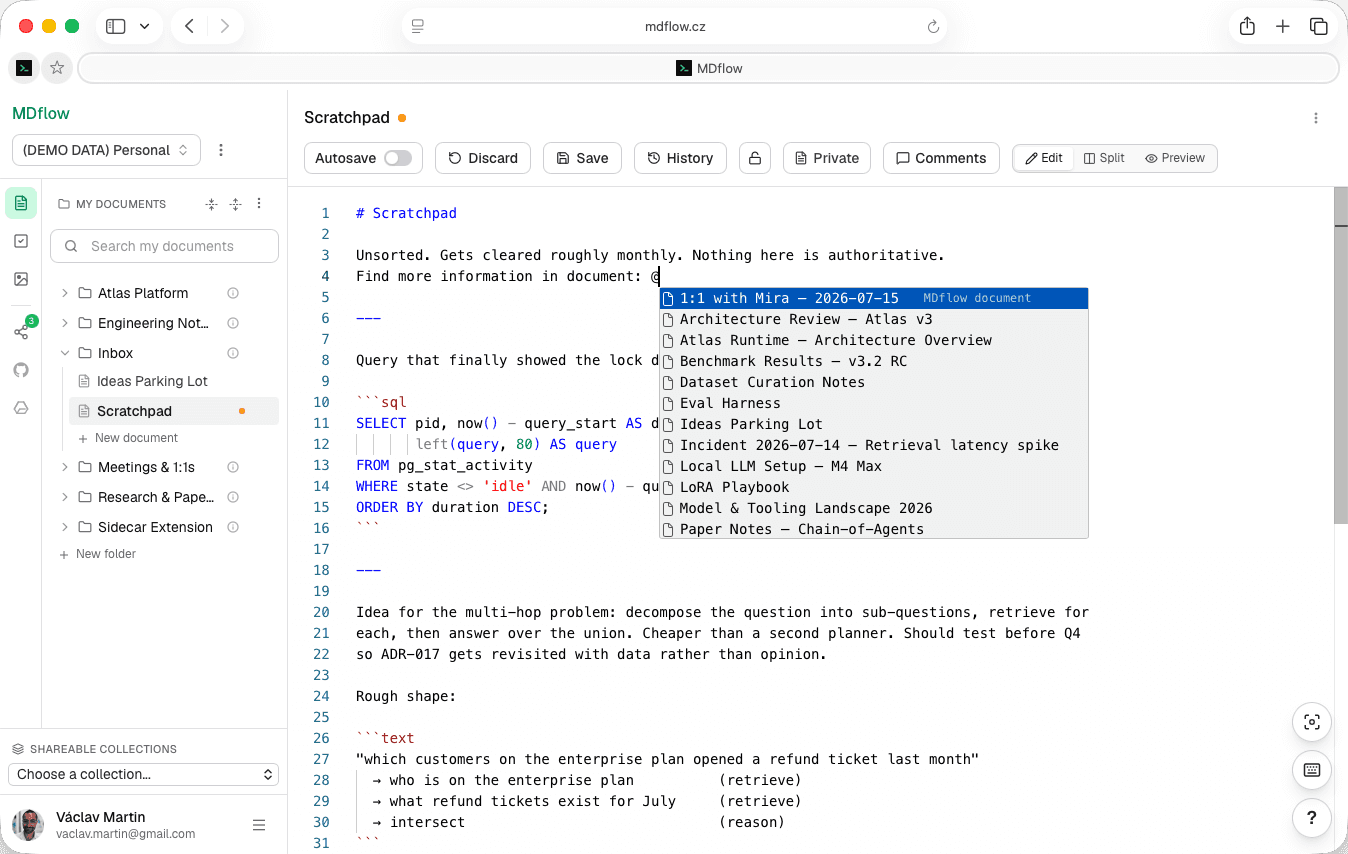
- Link with @. Type
@and pick a document from autocomplete — MDflow inserts a live internal link. Suggestions search the whole workspace by title, so you never stop to look up a path. - Lists that continue themselves. Enter inside a list item carries the list on — bullets keep your
-,*or+, numbered items count up, task lists start a fresh unchecked- [ ], and nested indentation is preserved. Enter on an item that is still empty clears the marker, so a second Enter leaves the list. - Paste a URL onto a selection. Select some words, paste a link over them, and MDflow writes
[selected text](pasted url)for you. It only fires where the intent is unambiguous — one line selected, and a clipboard holding nothing but a single address — so every other paste behaves normally. - Right-click to insert. An insert menu drops markdown at the caret: heading levels 1–3, checked and unchecked task-list items, a link, an external image, and today's date as a YYYYMMDD stamp.
- Focus mode. Hides the sidebar and the document toolbar so only the editor is on screen. There is also optional typewriter sound, remembered per browser, if that is your kind of thing.
- Images by drag or paste. Drop a file into the editor or paste from the clipboard and the markdown image syntax is written for you. JPEG, PNG and WebP up to 20 MB, resized in the browser before upload. Uploads are private until a saved public document references them. Every image in the preview opens full-screen on click, zooms up to 5×, and steps through the document's images with the arrow keys.
- Files attached to a note. Anything that is not an image — a PDF, a .docx, a deck, a spreadsheet, an archive — attaches to the document instead. It uploads on drop, lands in a bar under the editor with its size and a download link, and leaves a markdown link at your cursor so the text can say what it is. 10 MB per file, five files on Free and a hundred on Pro. That link is also the permission: while the saved text references a file, the people you privately shared the note with can download it, and no one else can — downloads are authorized one at a time through a short-lived link, so an attached file is never public even when its document is.
Moving around without the mouse
Once a workspace has a few hundred documents, getting to the right one is the work. Quick open, an outline panel and a shortcuts dialog — plus ⌘⇧R to re-read the tree from the server without throwing away what is in the editor, and ⌘\ to fold the sidebar down to a source rail.
- Quick open.
⌘K/Ctrl+Kanywhere in the workspace jumps you to a document by title. Matching runs in the browser over documents already loaded, so results appear as you type — and titles match loosely:bmnfinds “Board Meeting Notes”, andresumefinds “Résumé”. Open it with an empty field and it lists what you edited most recently. - An outline of the document.
⌘⇧O/Ctrl+Shift+Oopens a panel of the document's headings, indented by level. Click one and the editor and the preview jump to it together. Headings inside code fences are left out. - Press ? for the whole list. A dialog listing every shortcut the app has — quick open, refresh, save, bold, italic, duplicate line, paste-to-link, find and the outline. It is in the account menu too, so you do not need a shortcut to find the shortcuts.
- Hints where you already are. Hold
⌘/Ctrland each shortcut appears on the control it belongs to — on the search box, the Save button, the outline button. They float above the buttons, so nothing in the toolbar shifts.
Not losing work
The unglamorous half of a notes app. A dropped connection, a second tab, an agent writing at the same moment — none of these should cost you a paragraph.
- Drafts survive reloads. Unsaved edits are kept locally as you work and survive a page reload or navigating to another document. Documents with a recoverable draft are marked in the sidebar.
- Usable offline. An offline banner appears when the connection drops, the editor keeps working, and unsaved changes retry automatically once you are back.
- Saves that can't clobber. A save only overwrites the server copy your edit was based on. If the document changed elsewhere — another tab, an agent, an integration — you get a keep-mine / load-server dialog instead of a silent overwrite.
- Autosave when you want it. Toggle autosave per document and MDflow saves a few seconds after you stop typing. Manual save stays available alongside it. Pro.
Going back
Every saved change captures the previous version — including writes that arrive over the API or MCP, so an agent's edit is recorded the same way yours is.
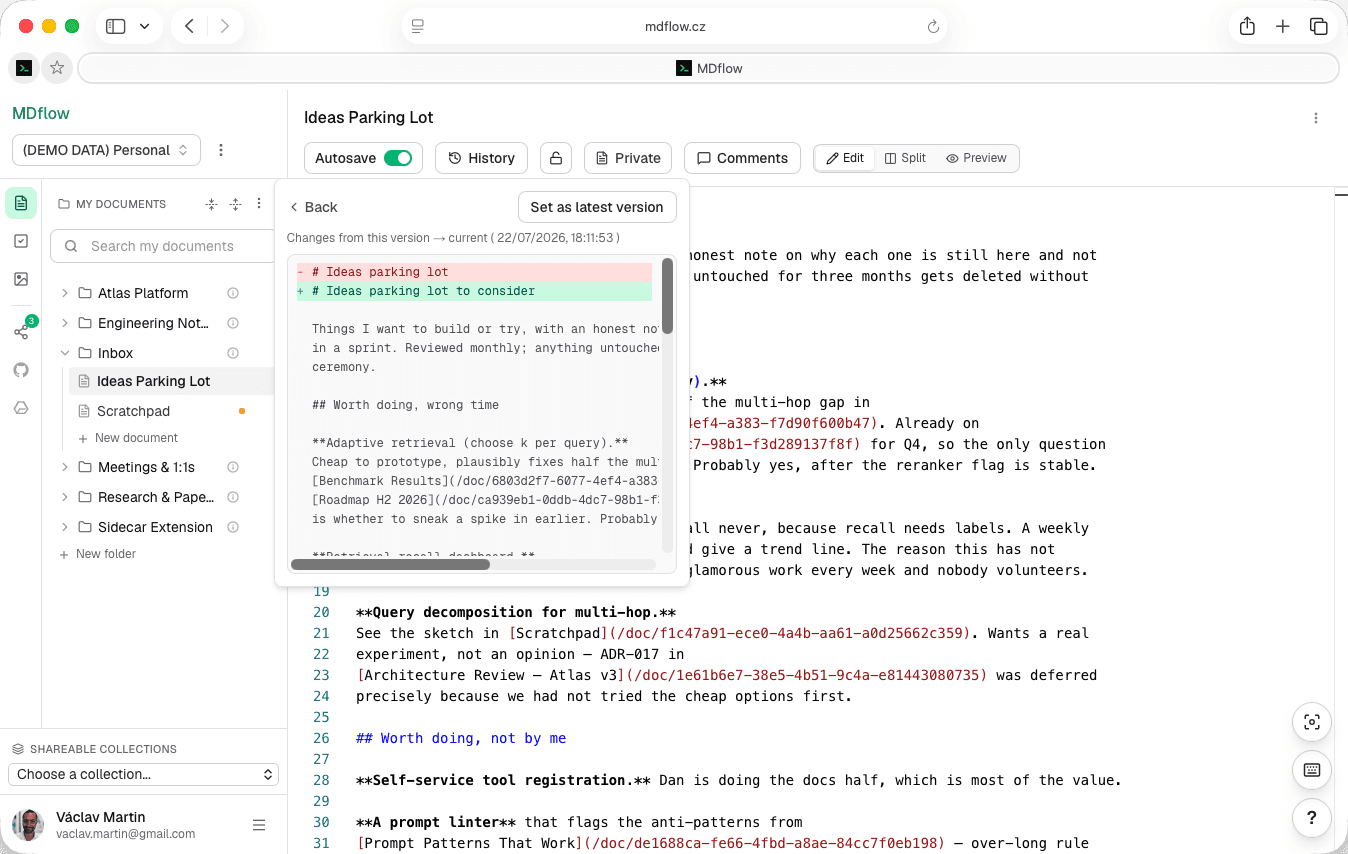
- Line-by-line diff. Browse versions newest first, labelled by when each was current, and view a markdown diff between any previous version and the document as it stands.
- Non-destructive restore. “Set as latest version” brings an old version forward without discarding the current text — that becomes a new history entry of its own.
- Private to you. History is never exposed through the HTTP API or the MCP server. Encrypted documents are versioned as ciphertext and need unlocking in the browser to diff or restore.
- Bounded retention. 30 days or the last 300 versions per document, whichever comes first (10 versions above 100 KiB). Rapid saves within a minute collapse into one capture. Pro.
Organising once you have a few hundred
Folders, not tags. A tree you can nest, favourites for the documents you actually reopen, and search that lands you on the phrase you looked for.
- Workspaces. Separate trees for separate parts of life — Work, Personal, a side project. Switching swaps the whole sidebar. No limit on how many, on any plan.
- Folders that nest. Build a real tree, move a folder to a new parent with a picker, collapse what you are not using. Each folder takes an optional description — which is also what makes retrieval work for agents.
- Favourites and paths. Pin the documents you keep coming back to into their own sidebar section, and copy any document's full path in one click, ready to paste into a prompt or another note.
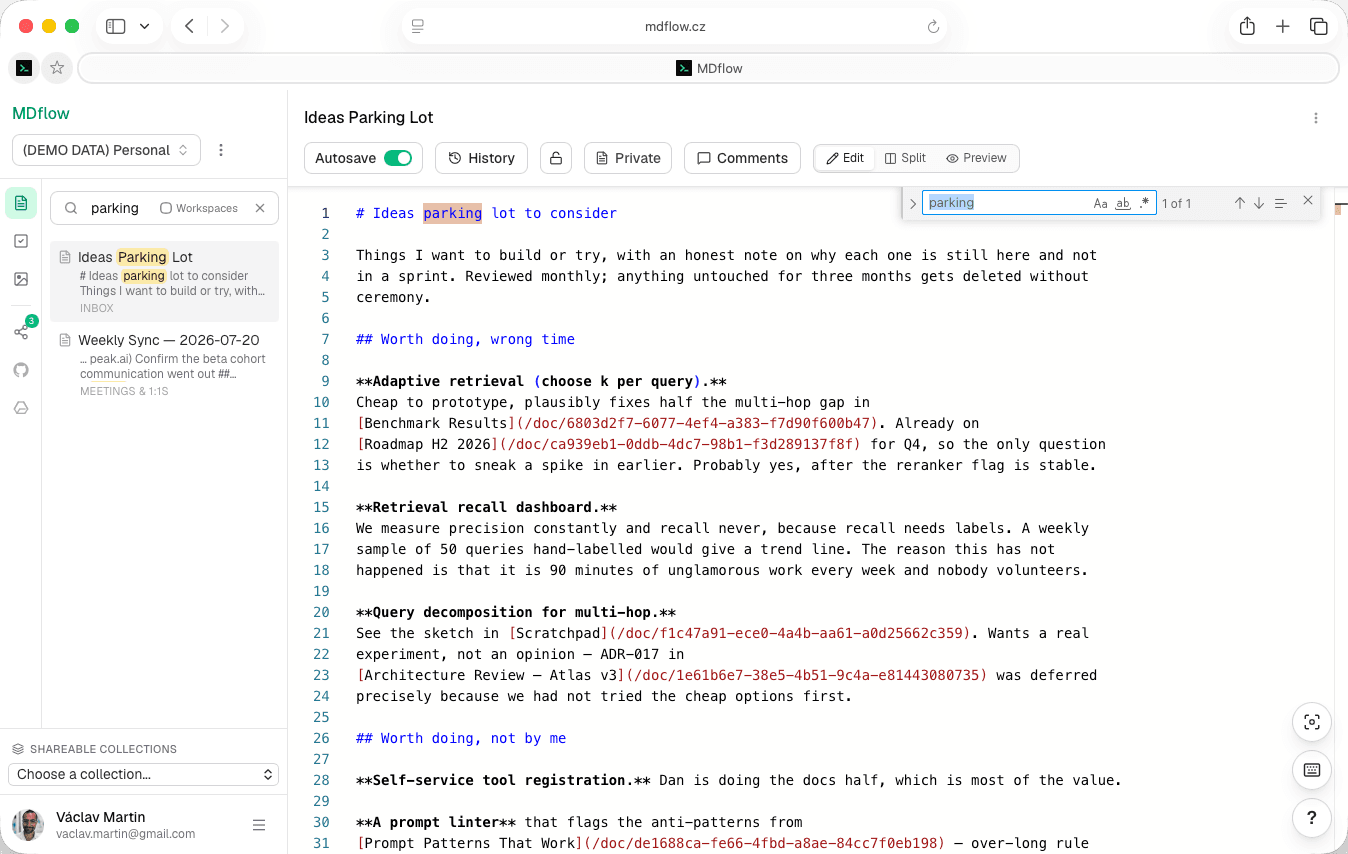
- Full-text search. Across titles and body text, with the matching snippet and its folder shown in the result and the match highlighted. Open a result and the editor's Find is already primed with your phrase, on the first match.
Getting in, and getting out
The test of whether markdown is really the format: how cheap it is to leave. Import is a drag; export is one .zip that opens anywhere.
- Bring a whole tree in. Drag a folder — subfolders included — into the sidebar and MDflow recreates the hierarchy, importing every
.mdand skipping the rest. Duplicate names are disambiguated, skipped files are reported. - Take one file out. Download any document as
.md— the unmodified source, not a conversion — or run it through a print-ready PDF flow. - Take everything out. Export a workspace as one
.zip: the folder tree as directories, each document as its markdown, every referenced image in a sharedassets/folder with links rewritten to relative paths. - It opens elsewhere. Because the archive is self-contained and the source is untouched, it renders offline in Obsidian, in VS Code, or on GitHub. Leaving costs you one download.
What it doesn't do
MDflow is a single-writer markdown workspace. These are real gaps, not roadmap teases — if one of them is a dealbreaker, better you know now.
- No real-time collaborative editing. Two people cannot type in one document at once. You can share a document for reading and commenting, but there are no live cursors.
- No tags. Organisation is folders, favourites and search. If your system depends on tags and saved queries, MDflow will feel narrow.
- No trash. Deleting a document asks for confirmation and then it is gone — recovery depends on version history, which is Pro.
- Not local-first. The editor survives a dropped connection, but MDflow is a web app: there is no offline library of everything you have ever written.
Questions
Is my note stored as an actual markdown file?
Can I use MDflow offline?
What happens if I edit the same document in two places?
Do I get version history on the free plan?
How many documents can I keep for free?
Does MDflow have keyboard shortcuts?
Can I write markdown notes on my phone?
Write it in markdown. Keep it in markdown.
Sign in, drag your existing .md files into the sidebar, and start writing. If it doesn't suit you, export the workspace as a .zip and take everything with you.
100 documents free, no card. Pro from €4.99/mo adds version history, autosave, the API and MCP.